
Waterfall View
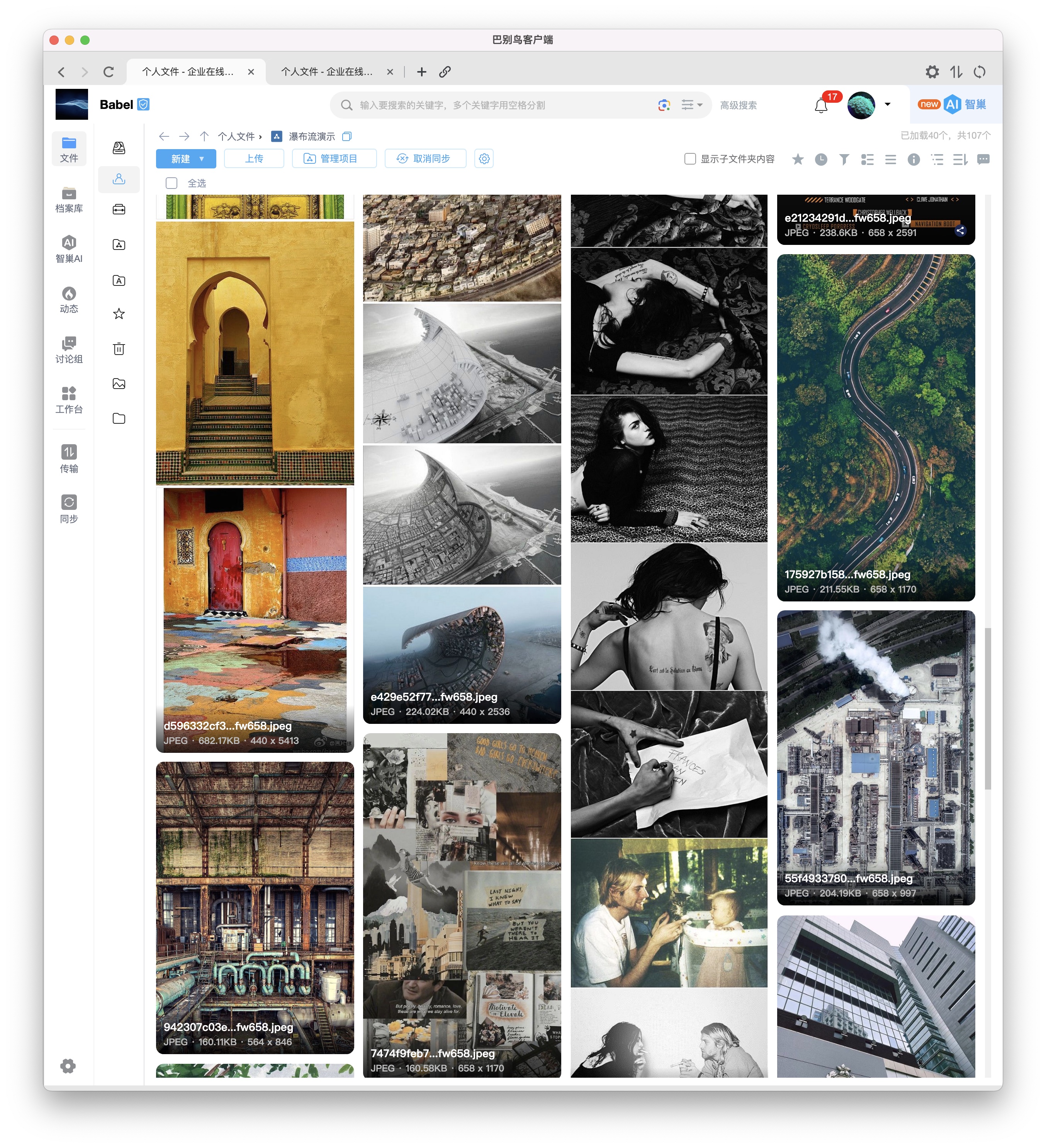
Waterfall view is designed for image-heavy folders such as pictures, design drafts, product images, photography assets, drawings and marketing materials. It presents files as larger continuous thumbnails so users can browse, select, preview and discuss materials quickly.
Automatic And Manual Switching
When a folder contains a high proportion of image files, the system can present it in waterfall mode by default, reducing repeated manual switching. Users can also switch to waterfall, tile or thumbnail view from the display control in the upper-right area of the web or client file list.

Supported File Types
Waterfall view primarily serves images and graphic files. It can also display Office, PDF, CAD and other files that have preview thumbnails. In image material scenarios, common formats include JPG, PNG, PSD, AI, RAW, HEIC and TIFF. Actual support depends on preview/transcoding, licensed modules and deployment configuration.
With Material Libraries
Waterfall view often works with Material Library, tags, image metadata, AI text-to-image search, image-to-image search and OCR. The material library provides classification and permission boundaries; waterfall view improves visual browsing; AI image search provides semantic retrieval.
Typical workflow:
- Organize brand assets, product images, design files or project photos into a material library.
- Add tags and descriptions for business meaning.
- Browse and select images in waterfall view.
- Open the previewer for large view, comments, annotations or download.
- Use AI image search, similar-image search or advanced search to locate related assets.
Permissions And Sharing
Waterfall view is only a display mode and does not change permissions. Whether a user can view, download, share, comment or edit still depends on department permissions, project permissions, material library permissions, file access control and sharing permissions. When sharing image materials externally, combine watermark, expiration, password, download restriction and access logs.